
 Trimix Analyser AdapterBluetooth Label Printingwww.trimixanalyser.com
Complete wiring diagram
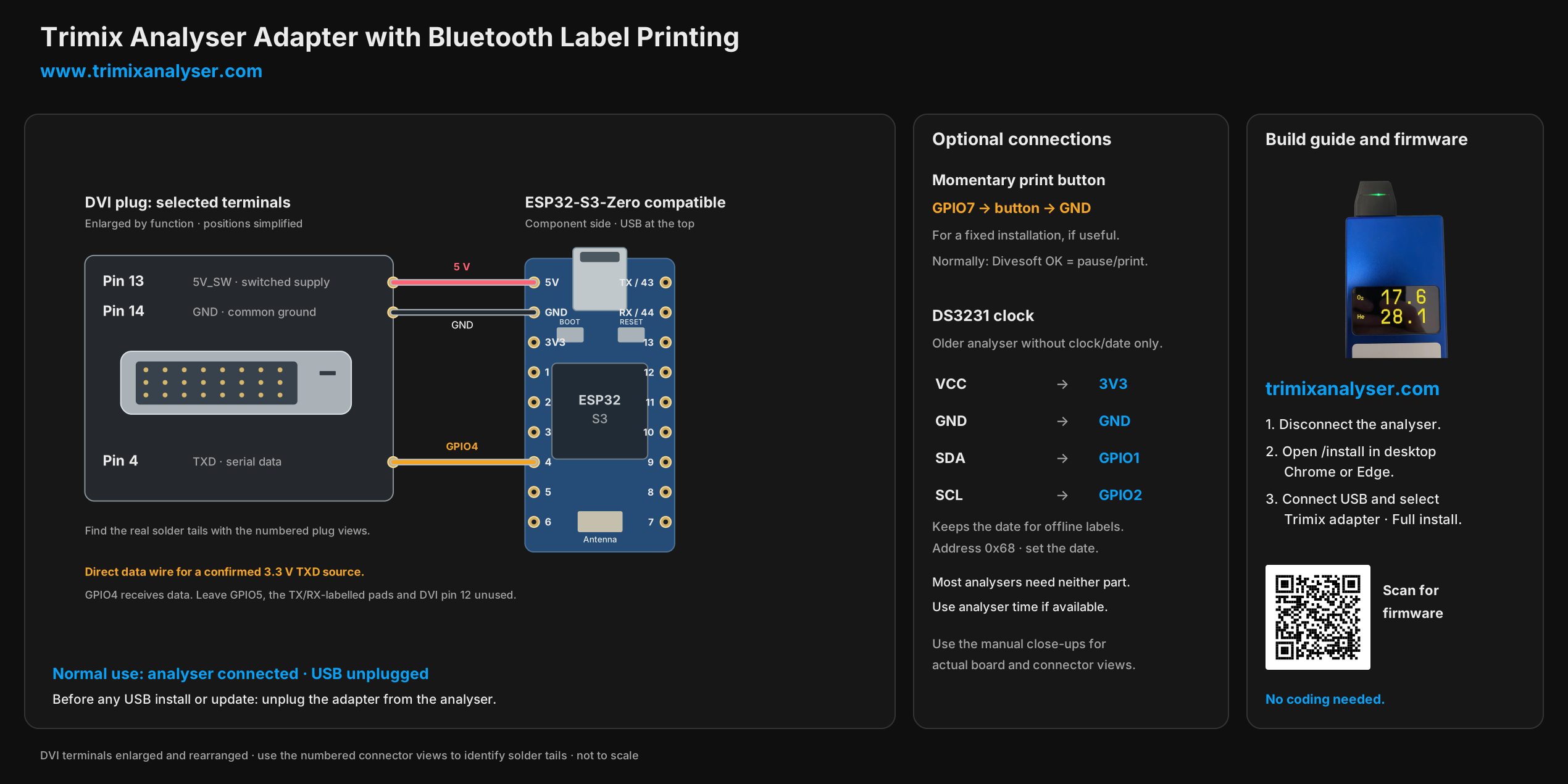 Trimix Analyser AdapterBluetooth Label Printingwww.trimixanalyser.com
Build it, one connection at a time
Trimix Analyser
Adapter with Bluetooth
Label Printing
Build it step by step
Step-by-step assembly manual
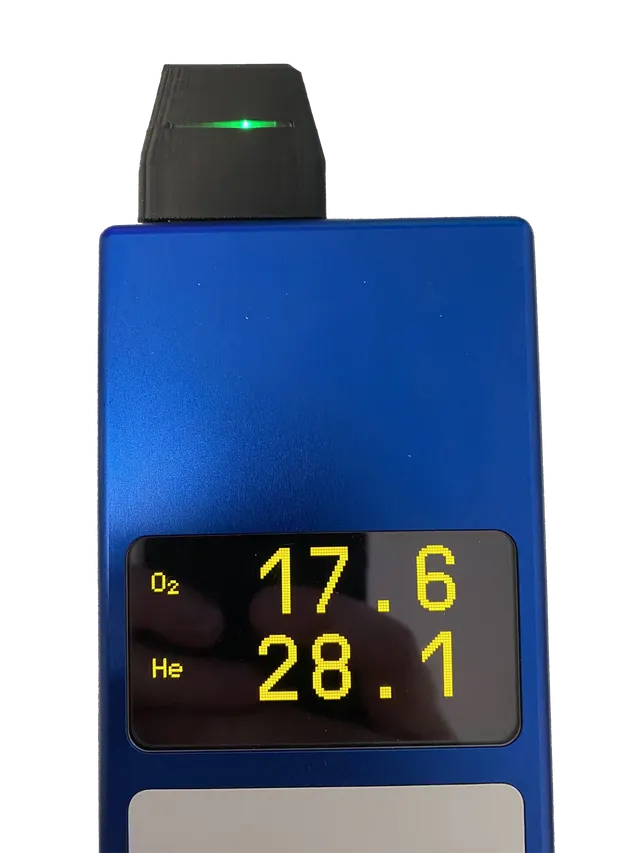
For most analysers, build only the three-wire adapter. Use the Divesoft keypad's OK key to pause and print. The separate button is useful for a fixed installation; the clock is only for older analysers without date/time when you need dated labels offline.
Trimix Analyser AdapterBluetooth Label Printingwww.trimixanalyser.comStep 1 of 11
Lay out the parts
Most analysers need only this three-wire build. It receives readings and takes power from the analyser; the clock and separate button are not needed for normal use.
- Use a Divesoft He/O2 analyser with the rear DVI-style connector. This adapter does not use the SOLO USB-C connection.
- Lay out one ESP32-S3-Zero-compatible board, a matching male DVI plug with solder terminals, short insulated wires, heat-shrink, and the printed housing. Use the board and connector specified in the parts list; buy the board without fitted headers.
- Print the housing set. Dry-fit the plug and board with the two specified M2.5 × 6 mm flat-head screws. Confirm the USB port and buttons remain accessible.
- Prepare a soldering iron, cutters, multimeter and USB data cable. For normal printing, use the OK key on the Divesoft keypad to pause measurement. A separate momentary button is only an optional extra, for example for a fixed installation.
- Skip the DS3231 clock if your analyser supplies a valid date and time. It is only useful for older analysers without a clock/date when you want dated labels without internet access. Network time is another option when internet Wi-Fi is available.
Check before continuing
The parts fit the housing. Keep the adapter disconnected from both the analyser and USB while soldering.
Trimix Analyser AdapterBluetooth Label Printingwww.trimixanalyser.comStep 2 of 11
Identify the DVI solder terminals
The plug looks different from the pin side and solder side. Find the terminal numbers before attaching any wires.
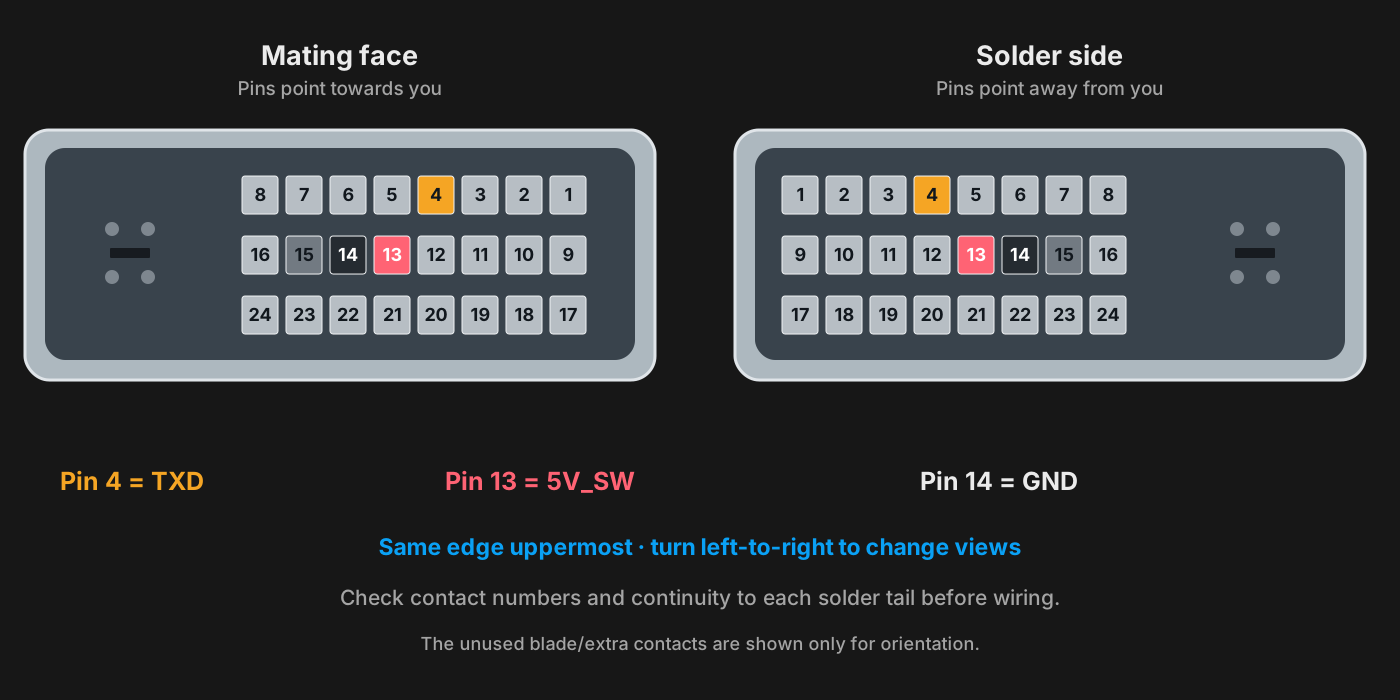
| Connect from | Connect to |
|---|---|
| Pin 4: TXD | Data to ESP32 GPIO4 |
| Pin 13: 5V_SW | Switched power to ESP32 5V |
| Pin 14: GND | Ground to ESP32 GND |
- Use the drawing's solder-side view when looking at the back of the male plug, with the mating pins pointing away from you. Keep the same edge at the top when turning the plug around.
- Confirm each solder terminal against its numbered mating contact with the multimeter. Connector bodies and solder tails vary, so the tail's apparent position alone is not enough. Pin 15 is another GND option; this guide consistently uses pin 14.
Check before continuing
You have positively identified pins 4, 13 and 14, including their solder terminals, with no power connected.
Trimix Analyser AdapterBluetooth Label Printingwww.trimixanalyser.comStep 3 of 11
Wire data and ground
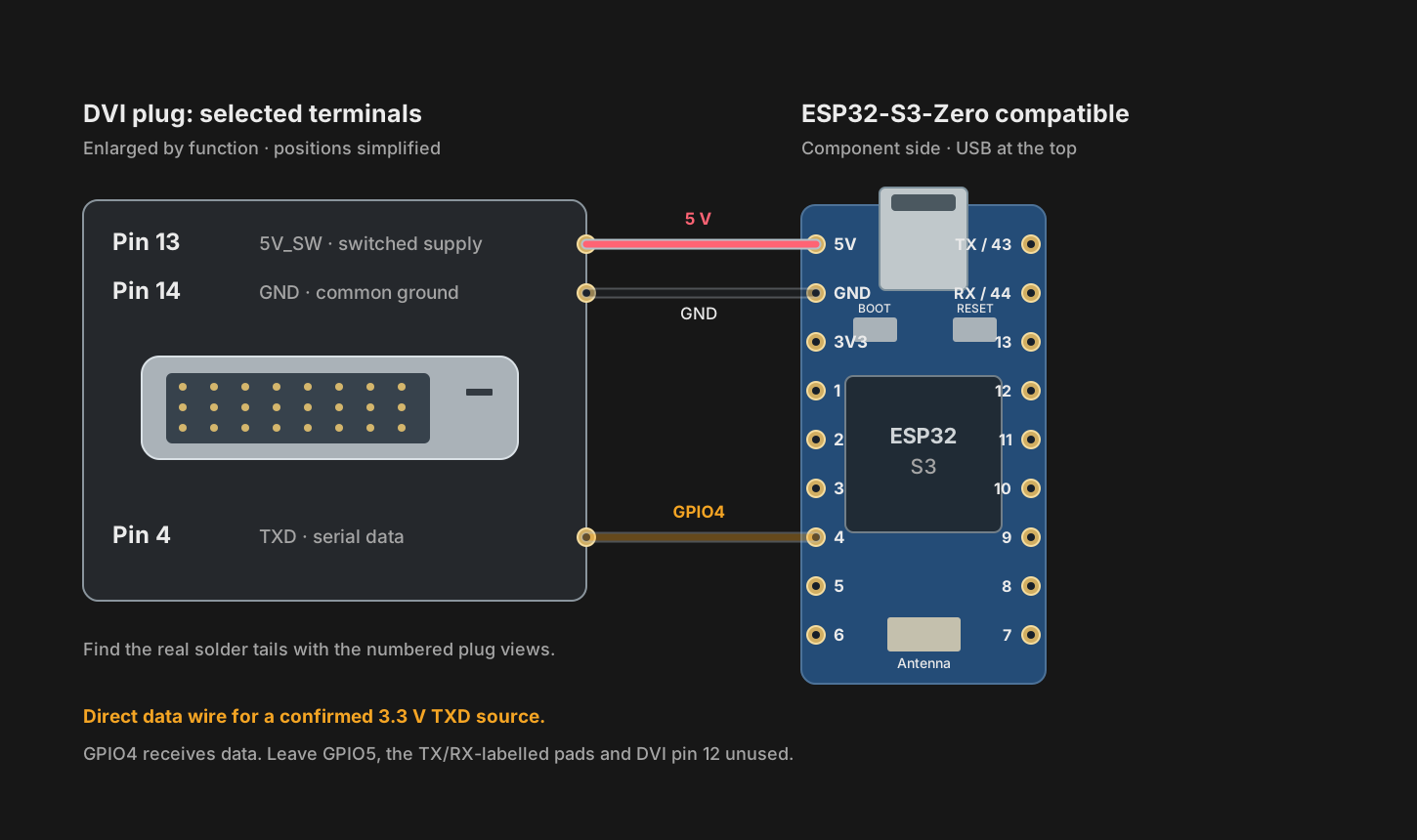
The data wire carries readings to GPIO4. The ground wire gives the analyser and adapter a common reference.
DVI plug: use the solder-side view to identify terminals. View numbered connector faces ↑
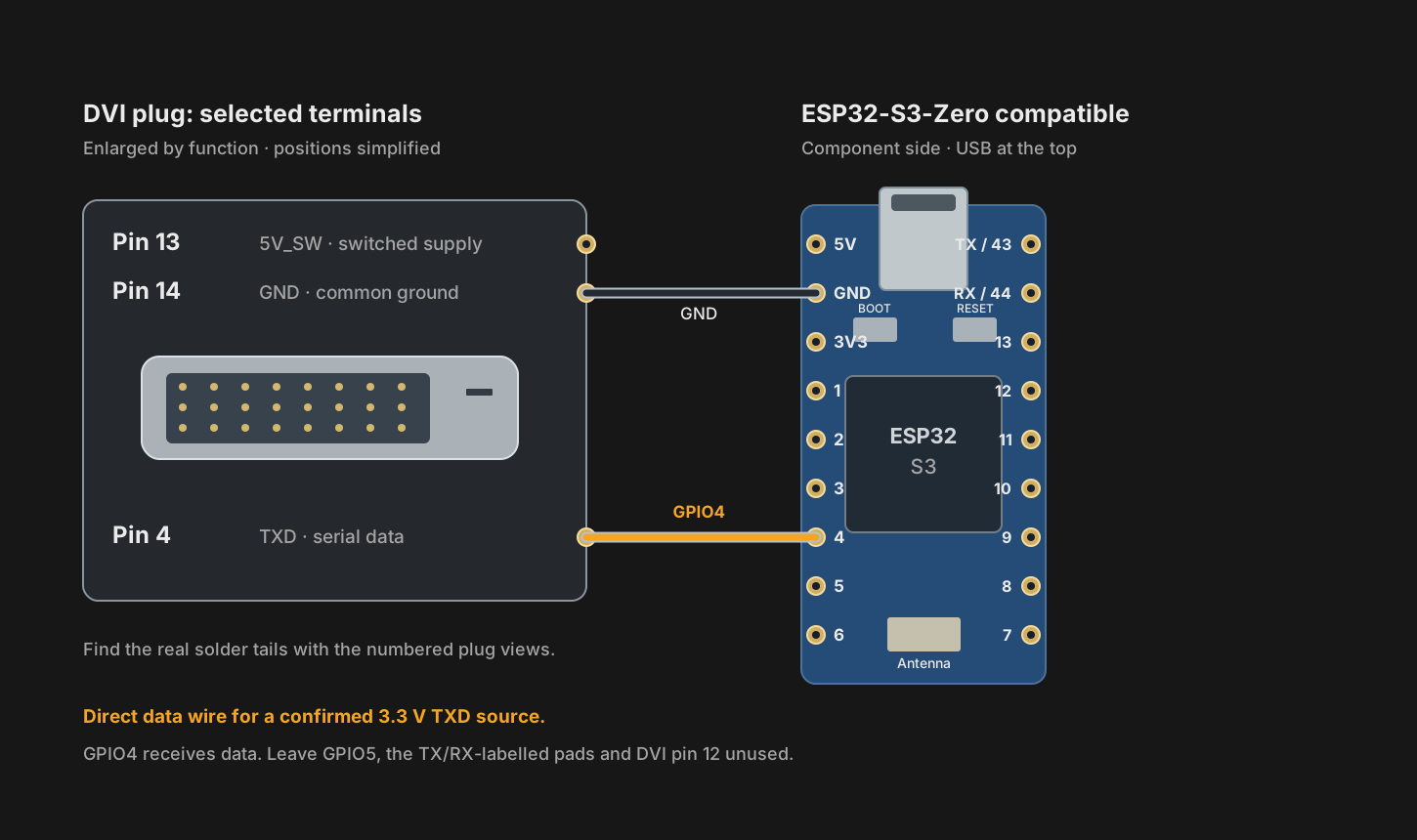
| Connect from | Connect to |
|---|---|
| DVI pin 4 (TXD) | ESP32 GPIO4 |
| DVI pin 14 (GND) | ESP32 GND |
- Solder a short data wire from pin 4 to the pad marked 4 on the ESP32. Use GPIO4, not the pad marked RX: the board's RX label refers to a different pin.
- Solder the ground wire from pin 14 to ESP32 GND. Keep both wires short, with a little slack for fitting the case. Inspect and insulate the joints.
Check before continuing
Pin 4 goes to GPIO4, pin 14 goes to GND, and the wires do not bridge adjacent contacts. The serial settings are handled by the firmware: 115200 baud, 8N1.
Trimix Analyser AdapterBluetooth Label Printingwww.trimixanalyser.comStep 4 of 11
Wire the analyser power supply
Pin 13 supplies switched 5 V, so the adapter starts and stops with the analyser.
DVI plug: use the solder-side view to identify terminals. View numbered connector faces ↑
| Connect from | Connect to |
|---|---|
| DVI pin 13 (5V_SW) | ESP32 5V |
- Confirm that the selected analyser connection provides switched 5 V between pin 13 and GND, using suitable insulated meter probes or a breakout. Keep the ESP32 disconnected during this check. Switch the analyser off and disconnect the plug before soldering.
- Solder the power wire from pin 13 to the ESP32 pad marked 5V. Do not connect it to 3V3 or to a GPIO. Insulate the connection.
Check before continuing
The basic build now has exactly three connections: 4 → GPIO4, 14 → GND, and 13 → 5V. It is still disconnected from both power sources.
Trimix Analyser AdapterBluetooth Label Printingwww.trimixanalyser.comThree-wire build photos
The three wires on the real build
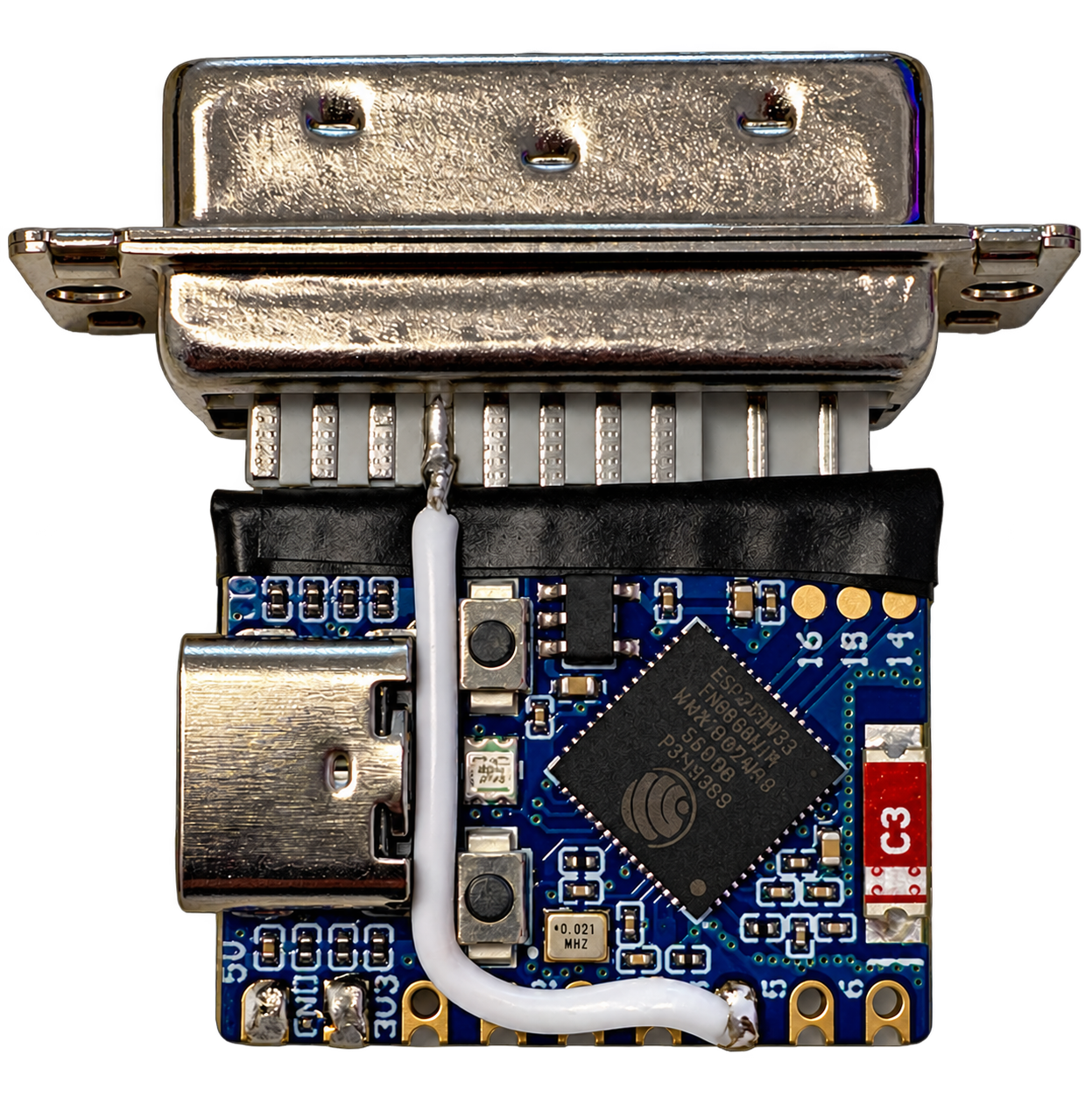
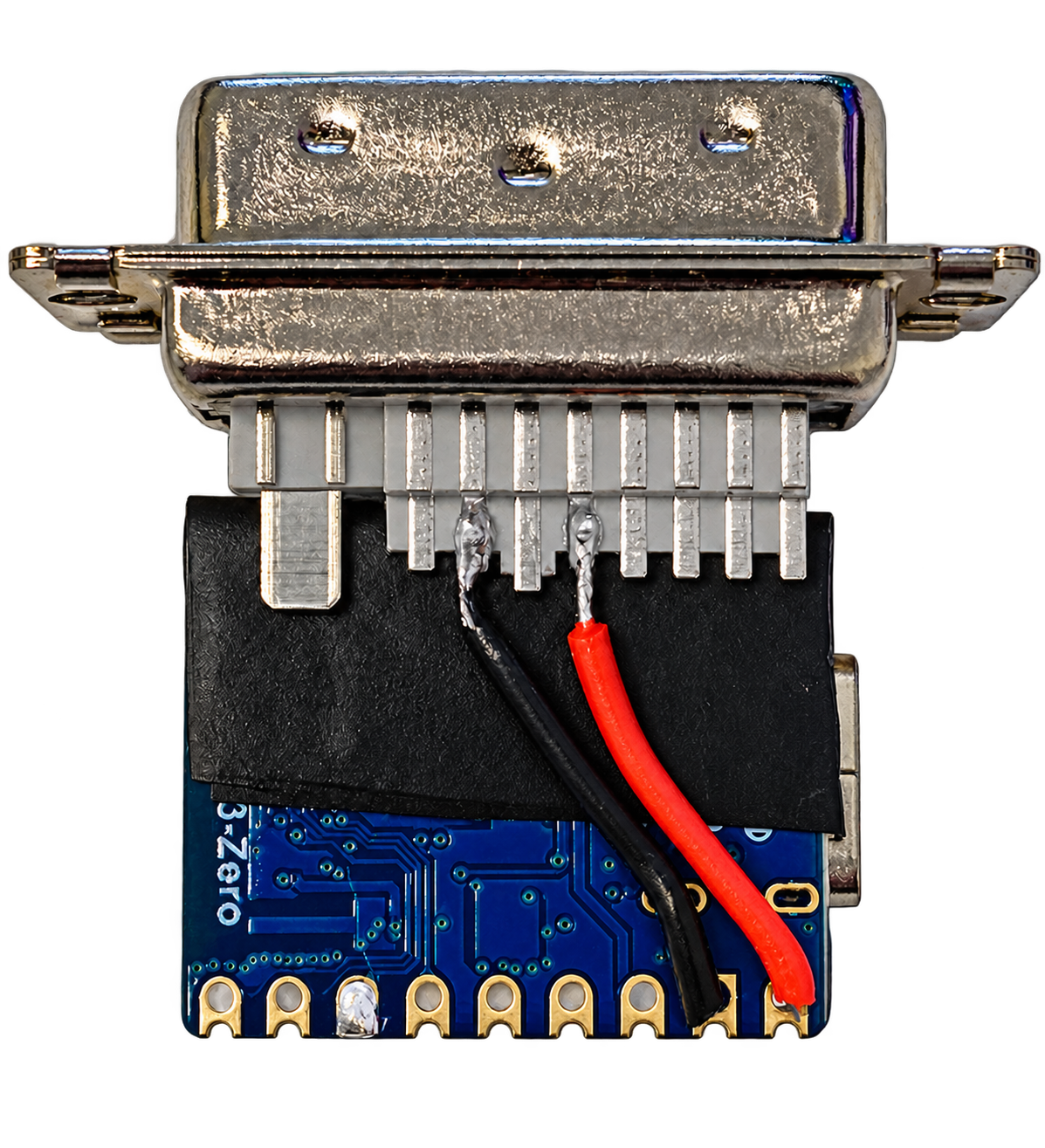
These are two views of the same adapter. The white data wire is on the component side; turn the assembly over to see the red power and black ground wires.
Component side: data
Reverse side: power and ground
| Wire | DVI plug | ESP32 board |
|---|---|---|
| White: data | Pin 4 (TXD) | GPIO4 |
| Red: power | Pin 13 (5V_SW) | 5V |
| Black: ground | Pin 14 (GND) | GND |
Use the numbered connector views and check continuity to identify pins. Wire colours may differ on your build. The black sheet insulates the board from the connector.
Trimix Analyser AdapterBluetooth Label Printingwww.trimixanalyser.comStep 5 of 11 Optional
Add a momentary button if needed
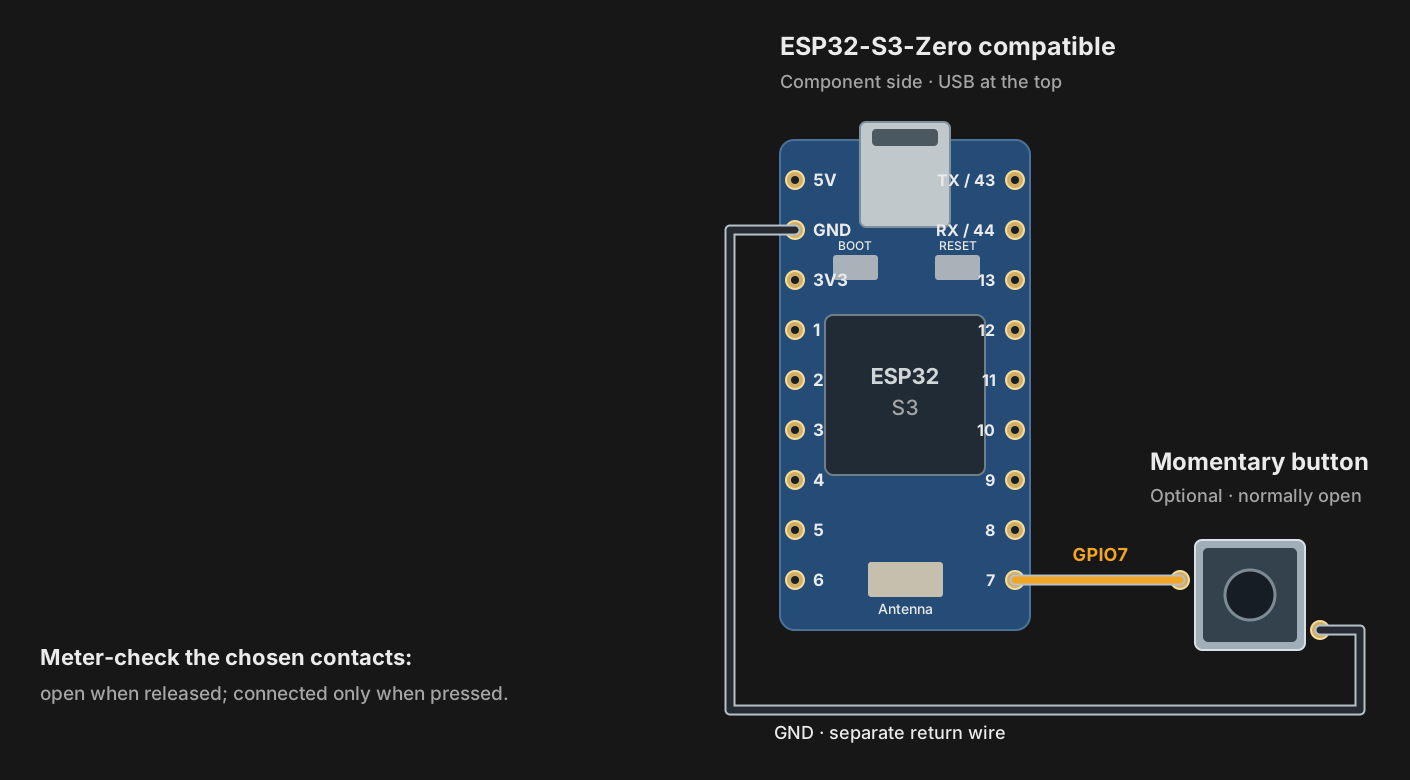
Skip this step for normal use: press the OK key on the Divesoft keypad to pause and print. A separate button is useful for a fixed installation, for example when the analyser keypad is hard to reach.
| Connect from | Connect to |
|---|---|
| ESP32 GPIO7 | One button contact group |
| ESP32 GND | The other button contact group |
- Choose a normally open momentary button. With a four-leg switch, meter-check two contacts that are open when released and connected only when pressed.
- Connect one contact to GPIO7 and the other to GND. No external pull-up resistor is needed for this input. The firmware requests a print when you release the button and valid gas data are available.
Check before continuing
The switch opens when released and closes when pressed. It fits the case without trapping wires. If omitted, leave GPIO7 unconnected.
Trimix Analyser AdapterBluetooth Label Printingwww.trimixanalyser.comStep 6 of 11 Optional
Add a clock for an older analyser
Most analysers do not need this part. Add a DS3231 real-time clock (RTC) only for an older analyser without a clock/date if you want dated labels offline. It keeps the date while power is off.
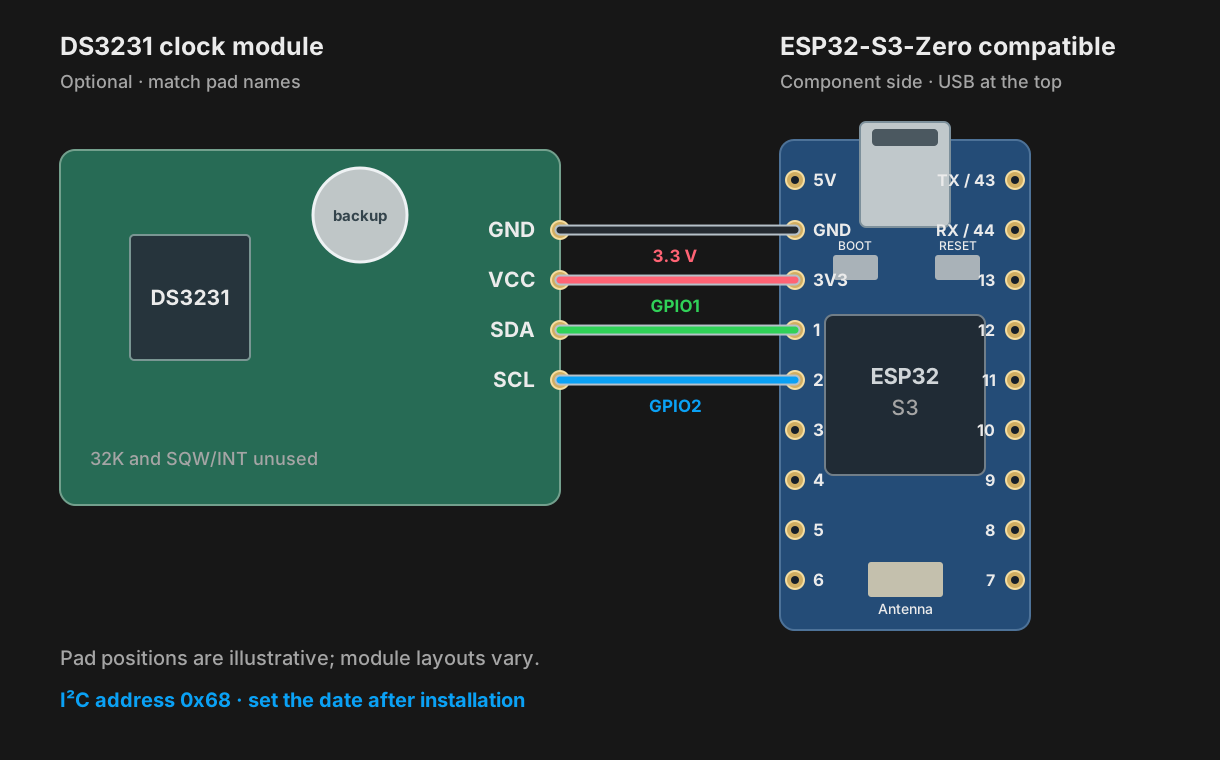
| Connect from | Connect to |
|---|---|
| DS3231 VCC | ESP32 3V3 |
| DS3231 GND | ESP32 GND |
| DS3231 SDA | ESP32 GPIO1 |
| DS3231 SCL | ESP32 GPIO2 |
- Use a DS3231 module suitable for 3.3 V power and I²C signals, with the backup cell specified for that module. Keep its exposed contacts insulated from the ESP32 and DVI plug.
- With all power disconnected, wire the four labelled connections. Leave SQW/INT and 32K unconnected. The DS3231 address is fixed at 0x68; there is no address jumper to add.
- Set and verify the clock during browser setup. Fitting the module does not set the date automatically. If your analyser supplies a valid date and time, skip this module and use analyser time. For an older analyser, internet Wi-Fi can supply network time after each power-up instead.
Check before continuing
If fitted: VCC is on 3V3, SDA is on 1, SCL is on 2, and the module is insulated. If your analyser supplies a valid date/time, skip to step 7 and leave these connections unused.
Trimix Analyser AdapterBluetooth Label Printingwww.trimixanalyser.comStep 7 of 11
Inspect and install the firmware
Use USB alone for the first installation. The adapter must be completely unplugged from the analyser.
- Compare each joint with the complete wiring drawing and its numbered connector views. Check continuity from the mating pins to the intended ESP32 pads, inspect for solder bridges, and check that 5V is not shorted to GND.
- Keep the DVI plug disconnected. Open www.trimixanalyser.com/install in desktop Chrome or Edge. Choose Trimix adapter and Full install for a new board.
- Connect the ESP32 with a USB data cable and follow Connect and install. If the board does not appear, hold its BOOT button while connecting USB, then release it and retry the port selection. You can also hold BOOT, tap RESET, then release BOOT.
- Wait for installation to finish. Press RESET if needed to start the installed firmware. If anything heats abnormally, disconnect USB and inspect the wiring. Unplug USB before the next step.
Check before continuing
Installation completes, the board starts normally, and USB is unplugged before reconnecting the analyser.
Trimix Analyser AdapterBluetooth Label Printingwww.trimixanalyser.comStep 8 of 11
Connect the analyser and enable data
The adapter needs the analyser's serial output to receive live oxygen and helium readings.
- With USB unplugged and the analyser switched off, fit the adapter plug gently to the rear connector. Do not force it or pull on the wires. Switch the analyser on; the adapter should start from the analyser's supply.
- On the analyser, enable Menu → Preferences → Send Data to USB → On. Some firmware versions use a different data-output label. Although the menu says USB, this setting also enables the rear serial output used here.
- Follow the Divesoft's own calibration, gas-sampling and stabilisation procedure. This adapter copies readings; it does not calibrate the analyser or establish that a cylinder contains the displayed gas.
- Keep the lid accessible for setup and testing. If the adapter does not start, switch off and disconnect it before checking pin 13, GND and the ESP32 5V pad. Never add USB while it remains connected to the analyser.
Check before continuing
The adapter is powered from the analyser, USB is absent, and the analyser's data-output setting is enabled.
Trimix Analyser AdapterBluetooth Label Printingwww.trimixanalyser.comStep 9 of 11
Set up the printer and date
Use the adapter's local browser page to choose the printer, label settings, owner and time source.
- Join setup Wi-FiJoin TrimixAdapter-XXXX with the factory password 12345678. Stay connected if your phone reports no internet.
- Open setupOpen http://192.168.4.1/. If setup Wi-Fi has timed out, restart the adapter and reconnect. The default idle timeout is five minutes and can be changed in settings.
- Save the printerCharge and switch on a supported printer, such as the Niimbot B1, and load the intended labels. Under Print, scan, select the printer and save it. Bluetooth carries print data; setup Wi-Fi is for configuration.
- Check label settingsChoose label size, owner initials, units, ppO₂ limit and END settings. Check that the saved values match your procedure.
- Choose the date sourceUnder System → Label Date/Time Source, use analyser time if it supplies a valid date. No extra clock is needed. For an older analyser without date/time, use a set DS3231 for dated labels offline, or internet Wi-Fi for network time after each power-up.
- Verify the dateChoose the device timezone under Connect. Check the date now and after restarting. DATE NOT SET means no valid date is available; correct it before using dated labels.
Check before continuing
The saved printer connects, the label size and owner are correct, and the date is valid. Check the date again after restarting.
Trimix Analyser AdapterBluetooth Label Printingwww.trimixanalyser.comStep 10 of 11
Check readings and print a first label
Verify that the adapter receives the current reading and that the label says what you intend.
- Watch the browser's live values and compare O₂ and He with the analyser display. Allow for any configured averaging. If values are missing, stale or inconsistent, stop and check the data setting, wiring and analyser before printing.
- Start with a known air or Nitrox sample and a basic Nitrox label, which needs no Pro licence. With pause-to-print enabled, let valid data flow for at least five seconds and confirm the reading has settled. Press the OK key on the Divesoft keypad to pause measurement and trigger printing. The default pause delay is three seconds.
- One label should print. Press the OK key again to resume measurement. The default automatic-print cooldown is 30 seconds; a new print also needs fresh readings. No extra button is needed for this normal workflow. A fitted momentary button is an alternative trigger when released, for example in a fixed installation.
- Check mix, MOD, END, units, date, owner and cylinder identity. Basic Nitrox labels are not a substitute for full helium/Trimix labels. For those, open Licence, activate the matching Trimix Pro licence for this adapter's Device ID, then verify a Trimix label against the analyser.
Check before continuing
The current readings agree with the analyser and the first label matches them, with the intended settings and date.
Trimix Analyser AdapterBluetooth Label Printingwww.trimixanalyser.comStep 11 of 11
Fit the case and keep it ready
Secure the finished adapter without trapping wires, then repeat the checks after closing it.
- Switch the analyser off and unplug the adapter. Leave USB disconnected. Seat the plug and board in the printed housing; insulate every exposed joint and support the wires so they cannot pull on the solder pads.
- Keep the board's antenna end clear of metal. Fit optional parts only where there is room without pressure. Close the case using the specified screws; stop if it needs force or a screw can touch the circuit.
- Reconnect with USB absent. Check live readings, button operation if fitted, the date and a label again. Before each use, follow the analyser's checks and compare the printed label with the current analysis.
- Before any later USB install or update, unplug the adapter completely from the analyser. Keep the operating manual and troubleshooting guide available.
Check before continuing
The case closes freely, the adapter is secure, and the final live-reading and label checks pass.